
How to Make an AI Pet Dance Video From One Photo
Turn a cat or dog photo into a short dance video. Compare Pet Dance, Moonwalk, and Groove, then pick a MiniMax H3 profile.
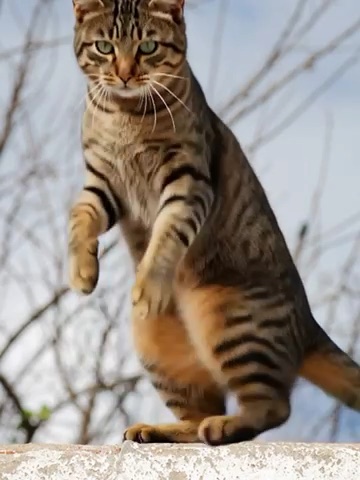
To make an AI pet dance video in WandFX, upload one photo of your cat or dog, choose a movement, and select a video profile. A full-body photo is a good place to start, especially if the paws are part of the move you want to see.
Choose the movement first
- Pet Dance asks for an upright horse-riding dance with crossed front paws and side-to-side hops.
- Pet Moonwalk asks for a backward glide with alternating paws.
- Pet Groove asks for quick side steps, shoulder pops, and a pose at the end.
Try Pet Dance for a cat photo with the front paws visible. For a dog with open space around its legs, Pet Moonwalk gives you a different movement to compare.
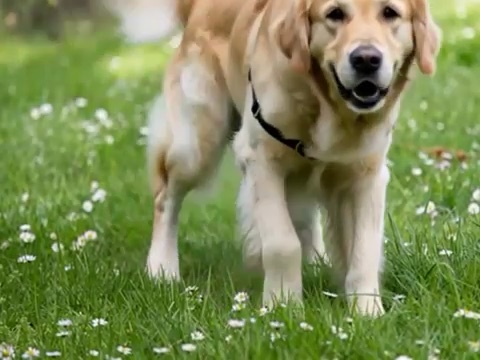
A frame from a generated Pet Moonwalk sample. The full clip shows the movement the still can only suggest.
Upload the photo and choose a profile
Open the tool for your chosen effect and upload a JPEG, PNG, or WebP photo up to 5 MB. All three MiniMax H3 profiles on WandFX use 768p output.
- Quick Preview uses MiniMax H3 Lite for 4 seconds at 15 credits.
- Standard uses MiniMax H3 Highspeed for 5 seconds at 27 regular credits.
- High Quality uses MiniMax H3 for 5 seconds at 35 regular credits.
If you have welcome trial credits, choose Quick Preview to use them. Confirm you have permission to use the photo, accept the terms and content policy, and allow the selected AI provider to process it. Then select Generate video. Open the Pet Dance tool
Review the result and save it
Preview the finished clip and download the one you want to keep. You can check the job under My creations. The preset describes a movement, so the exact paw position, timing, and ending pose can vary between generations. If an important paw is hard to see, try a wider photo. If you’re comparing effects, keep the photo and profile the same and change the movement.